- Difficulty
- Beginner
- Time
- 20 min
- Guidance reference
- App 0.2.0 beta · firmware 0.6.1 · PBLE/1
Historical screenshots retain the firmware versions and App state captured at the time; they have not been retaken on firmware 0.6.1.
Prerequisites
- A connected board and familiarity with Save and Run
Outcomes
- Open a starter and preview generated Python
- Create an editable copy and run it explicitly
- Choose hardware starters only after checking their assumptions
Release-aware guidance
Compatibility
The guidance reference above is not a promise about the installer currently being served. Confirm the active version, exact profile, and enabled action on the current firmware and flash page before provisioning or changing hardware.
Qualified firmware describes firmware evidence. The table below describes this lesson's scope; it does not turn designed compatibility into hardware validation.
| Firmware profile | Lesson scope |
|---|---|
Classic ESP32 (4 MiB)esp32-4mb | Designed for this profile |
ESP32-S3 N16R8 · lean genericesp32-s3-n16r8 | Designed for this profile |
Waveshare ESP32-S3-LCD-1.47Bwaveshare-esp32-s3-lcd-147b | Designed for this profile |
ESP32-C3 (4 MiB)esp32-c3-4mb | Designed for this profile |
Raspberry Pi Pico 2 Wrpi-pico2-w | Designed for this profile |
The language-only starters are designed for all five profiles. Hardware starters become appropriate only after explicit pin and wiring review. Their inclusion in the app is not physical-board validation.
Before you begin
Blocks-to-Python is the primary visual workflow. Preview, Create copy, Replace workspace, Open in editor, Save, and Run are distinct actions; loading or generating never means execution.
Eight bundled offline starters
Hello PyBLE
Print one greeting; no external wiring.
Count repeatedly
Combine a variable, loop, and paced Console output.
Blink LED
Requires an explicit GPIO and an external, protected LED.
Blink NeoPixel
Requires an explicit data GPIO, pixel power review, and Stop.
Read button
Requires an explicit input pin and reviewed pull-up wiring.
Button controls LED
Requires two distinct explicit pins and reviewed components.
Reusable function
Shows parameters and calls without external hardware.
ESP32-S3-LCD-1.47B TFT pattern
Only for the exact B-version display profile and documented pins.
Hardware starter boundaries
Blink LED, Read button, and Button controls LED require user-entered pins from exact carrier documentation; PyBLE supplies no default pins and assumes no generic onboard LED. Blink NeoPixel is designed for the four ESP profiles, not Pico 2 W. It still assumes neither a built-in pixel nor a safe power circuit.
The TFT starter is exact-board-only: use it on the Waveshare ESP32-S3-LCD-1.47B B-version after checking its fixed wiring. It is not for the lean ESP32-S3 N16R8 image, even though both report ESP32-S3.
Follow in order
Tutorial steps
Open the bundled examples
Switch to Blocks and choose Examples. Select Hello PyBLE. The chooser is bundled with the app and works offline; selecting a row only presents its description and available actions.
Expected: the chooser shows Hello PyBLE, its concepts, no-external-wiring note, and an idle generated-source area.
Preview before changing the workspace
Choose Preview and read the Generated Python panel. Preview is non-mutating: it does not replace the active workspace, write a board file, hand source to the Editor, or run anything.
Expected: a read-only Python preview appears while the Blocks canvas and connected board remain unchanged.
Create an independent editable copy
With an empty workspace, choose Create copy. If your workspace is not empty, the app instead offers Replace workspace and requires a separate confirmation. A created copy is independent; edits never alter the bundled starter.
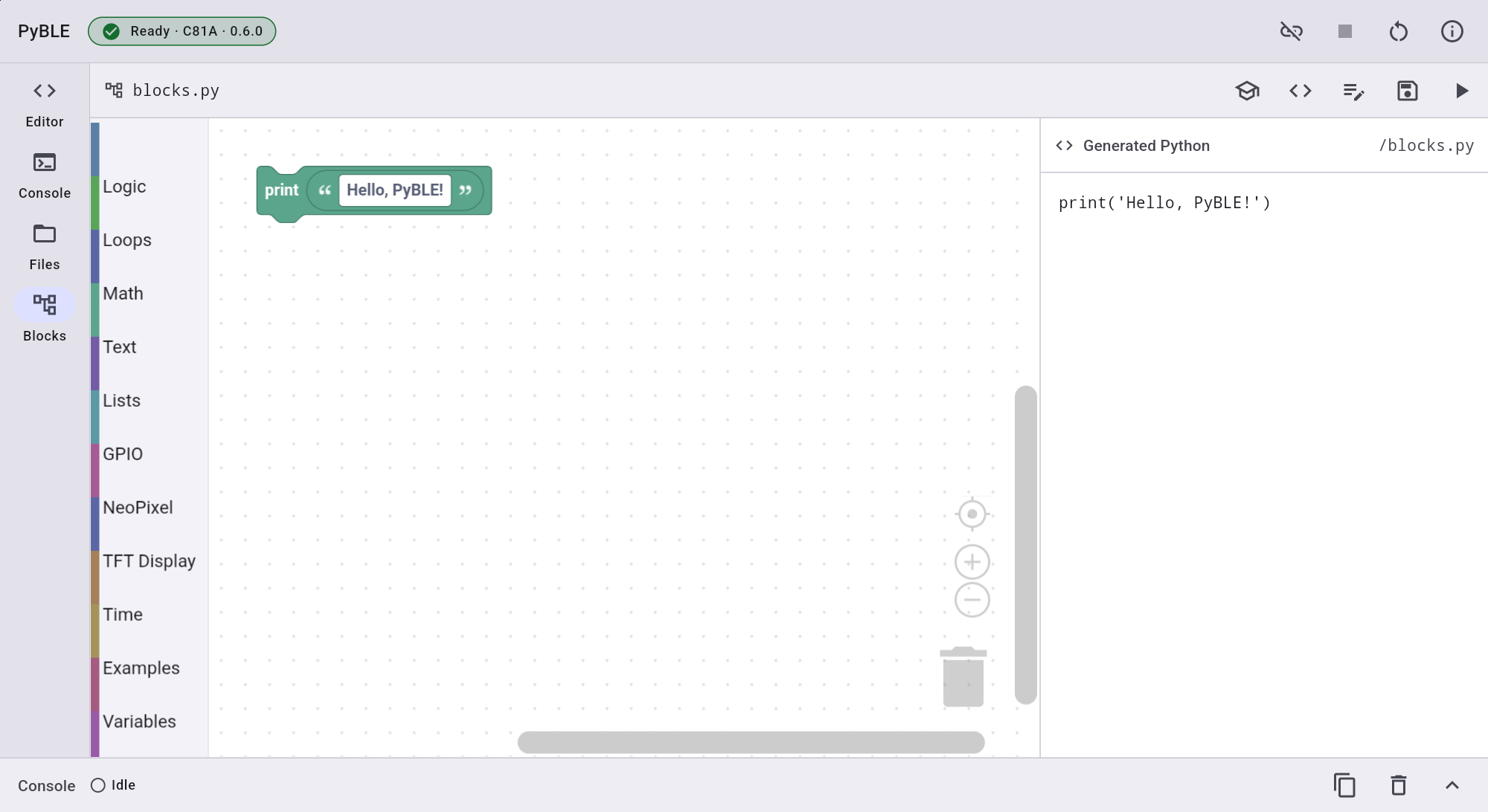
Actual Android tablet · Lenovo TB-J616XBlocks · editable Hello workspace · not saved or run Expected: the Blocks canvas contains an editable Hello PyBLE copy and nothing has been saved or run.
Edit and preview a fresh snapshot
Change the greeting block, then use Preview or Open in editor to inspect newly generated Python. Generation uses the current acknowledged workspace; returning from the Editor does not create two-way live sync.
Expected: the Python text reflects the edited block while the board still has not executed it.
Save and Run only when ready
Connect and verify the intended board, review the target path, then choose Save. Choose Run as a second explicit action. PyBLE writes the Python source first and its matching sidecar last; neither a starter nor a preview triggers these actions.
Expected: Save reports a complete source-and-sidecar pair, and only explicit Run produces the changed greeting in Console.
Reopen a saved workspace carefully
In Files, use Open as Blocks on the saved
.pysource. An exact, integrity-checked sidecar can restore the saved workspace only when it still describes the adjacent Python bytes. A stale, malformed, or missing companion is not silently trusted.Expected: PyBLE presents a review before restoring exact blocks or before offering a bounded Python conversion.
Treat Python conversion as a strict boundary
When you choose Convert Python to Blocks or Open as Blocks without an exact companion, PyBLE accepts only its supported beginner subset. The Python-to-Blocks conversion is all-or-nothing: any unsupported construct yields diagnostics and leaves the live workspace unchanged.
Stop if: the review reports an unsupported construct, stale source, invalid target, or source change; fix the Python and start a fresh conversion.
Need recovery help?
Stop at the current step, record the exact profile, board identity, app and firmware versions, and the first useful error. Then use the PyBLE support and recovery guide.