
- Difficulty
- Beginner
- Time
- 15 min
- Guidance reference
- App 0.2.0 beta · firmware 0.6.1 · PBLE/1
Historical screenshots retain the firmware versions and App state captured at the time; they have not been retaken on firmware 0.6.1.
Prerequisites
- A connected board and a completed first program
Outcomes
- Browse, create, open, edit, save, and refresh board files
- Select and delete disposable files with informed confirmation
- Recognize protected paths and non-atomic deletion behavior
Release-aware guidance
Compatibility
The guidance reference above is not a promise about the installer currently being served. Confirm the active version, exact profile, and enabled action on the current firmware and flash page before provisioning or changing hardware.
Qualified firmware describes firmware evidence. The table below describes this lesson's scope; it does not turn designed compatibility into hardware validation.
| Firmware profile | Lesson scope |
|---|---|
Classic ESP32 (4 MiB)esp32-4mb | Designed for this profile |
ESP32-S3 N16R8 · lean genericesp32-s3-n16r8 | Designed for this profile |
Waveshare ESP32-S3-LCD-1.47Bwaveshare-esp32-s3-lcd-147b | Designed for this profile |
ESP32-C3 (4 MiB)esp32-c3-4mb | Designed for this profile |
Raspberry Pi Pico 2 Wrpi-pico2-w | Designed for this profile |
Files uses the PBLE/1 filesystem surface on every profile. Protection is path-based and case-sensitive; lesson compatibility does not make every board-root entry user-editable.
Before you begin
Practice only with disposable files in /tutorial-capture, /examples, or a child folder. Files can create, open, edit, save, refresh, and remove board content, but this lesson does not promise direct export to tablet storage.
What can be selected
Selection includes only eligible, visible, direct regular files in the currently shown folder. Folders are excluded, omitted or truncated entries are excluded, and selection does not include descendants. It is not recursive. A folder still uses its separate one-at-a-time, empty-directory delete behavior.
At the board root, exact boot.py and _boot.py, lowercase names beginning with pyble or pble, and any path component ending in .pbltmp are protected. Ordinary nested pyble* basenames are not root control files, but .pbltmp remains locked anywhere.
Review before every mutation
The breadcrumb, selected count, exact filenames, connection state, and confirmation form one safety check. If any of them changes or looks unfamiliar, Cancel. Never use a deletion exercise to test whether a protected path is truly protected.
Follow in order
Tutorial steps
Work below the board root
Open Files and create or enter a disposable child folder such as
/tutorial-capture. You may instead work below/exampleswhen that folder contains no valuable work. Keep the breadcrumb visible and confirm the exact current path before every mutation.Expected: Files shows /tutorial-capture, or the disposable child you chose, as the current board folder.
Create, open, edit, save, and refresh
Create
delete_me_one.pyanddelete_me_two.py. Leave them empty for this deletion exercise, return to Files, and choose Refresh. Use only files you are prepared to lose.Expected: both disposable regular files appear directly in the current folder after Refresh.
Enter the bounded selection mode
Choose Select files, or long-press one eligible regular-file row. Toggle the two disposable files. Selection is bound to the current folder and board session; normal navigation and mutation actions remain unavailable until you Cancel or leave selection mode.
Expected: the contextual bar reports exactly two selected files and leaves folders or locked entries unavailable.
Read the confirmation, then cancel once
Choose Delete selected files. Read the exact current folder and ordered filenames in the confirmation, then choose Cancel for this first pass. Confirm in Files that neither disposable file was removed.
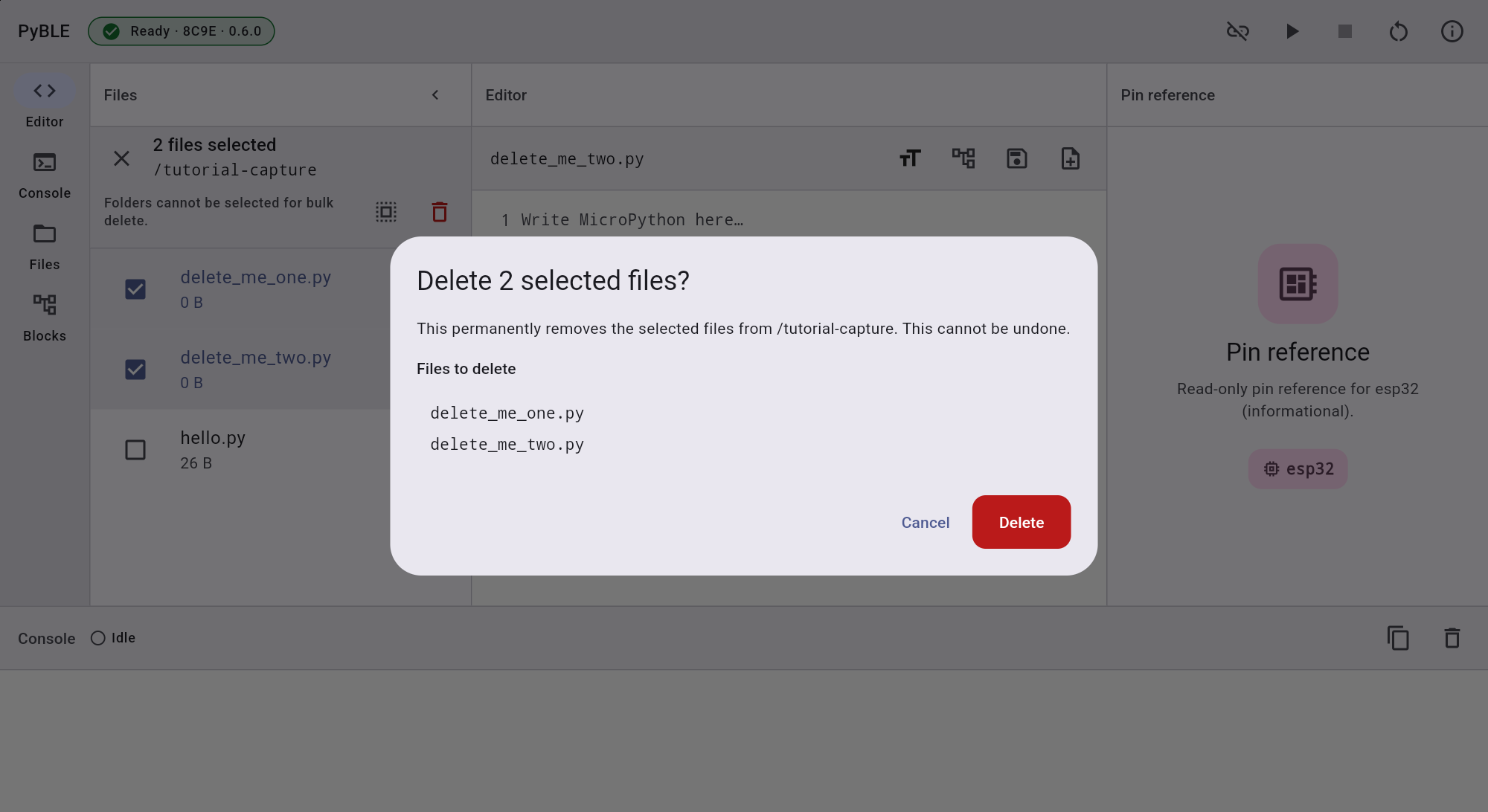
Actual Android tablet · Lenovo TB-J616XFiles · exact two-file deletion review before Cancel Expected: the dialog closes and both files remain; cancellation issues no deletion.
Confirm a permanent batch
Re-enter selection, select only the two disposable files, review the same exact targets, and confirm Delete. Keep the board connected until the terminal result and refreshed listing appear.
Stop if: the confirmation names a different folder, an unselected file, or anything you have not backed up.
Interpret the result literally
Compare the reported succeeded, failed/current, and unattempted paths with the refreshed list. A partial result means earlier removals stay removed; resolve the connection or path problem before deciding whether to retry an unresolved file.
Expected: a complete result removes both files, while a partial result identifies exactly what changed without claiming rollback.
Need recovery help?
Stop at the current step, record the exact profile, board identity, app and firmware versions, and the first useful error. Then use the PyBLE support and recovery guide.