- Difficulty
- Beginner
- Time
- 10 min
- Guidance reference
- App 0.2.0 beta · firmware 0.6.1 · PBLE/1
Historical screenshots retain the firmware versions and App state captured at the time; they have not been retaken on firmware 0.6.1.
Prerequisites
- A board connected to PyBLE after completing Setup
Outcomes
- Create and save a Python file on the board
- Run the file and read its Console output
Release-aware guidance
Compatibility
The guidance reference above is not a promise about the installer currently being served. Confirm the active version, exact profile, and enabled action on the current firmware and flash page before provisioning or changing hardware.
Qualified firmware describes firmware evidence. The table below describes this lesson's scope; it does not turn designed compatibility into hardware validation.
| Firmware profile | Lesson scope |
|---|---|
Classic ESP32 (4 MiB)esp32-4mb | Designed for this profile |
ESP32-S3 N16R8 · lean genericesp32-s3-n16r8 | Designed for this profile |
Waveshare ESP32-S3-LCD-1.47Bwaveshare-esp32-s3-lcd-147b | Designed for this profile |
ESP32-C3 (4 MiB)esp32-c3-4mb | Designed for this profile |
Raspberry Pi Pico 2 Wrpi-pico2-w | Designed for this profile |
This hardware-free program is designed for all five profiles because it only prints to the PBLE/1 Console. No pin, carrier, sensor, or display behavior is assumed.
Before you begin
Keep the board powered and verify that PyBLE still shows the identity checked in Setup. This lesson deliberately starts with a one-line, hardware-free program so an editor, transfer, runner, or Console problem cannot be confused with wiring.
What each observation proves
A successful Save proves the selected source reached the current board session. The one Console line proves explicit Run executed that saved file. Neither result validates hardware pins, and a reconnect should always be followed by another identity check.
Follow in order
Tutorial steps
Create a new board-backed file
With the correct board connected, in Files enter the disposable child folder you prepared, choose New file, and name it
hello.py. PyBLE opens the new board-backed file in the Editor. Enter exactly the one hardware-free line below. It uses no GPIO and is designed for all five profiles.print("Hello from PyBLE!")Expected: the editor shows hello.py as the current document and marks the unsaved edit clearly.
Save one reviewed snapshot
Read the line once more, then choose Save. Wait for the transfer to finish before editing again so the saved snapshot and the visible document are easy to compare.
Expected: Save completes and hello.py remains the current board-backed file without an unsaved-change indicator.
Run explicitly and read Console
Choose Run only after Save succeeds, then open Console. The full loop is
hello.py → Save → Run → Console; creating or saving the file alone never executes it.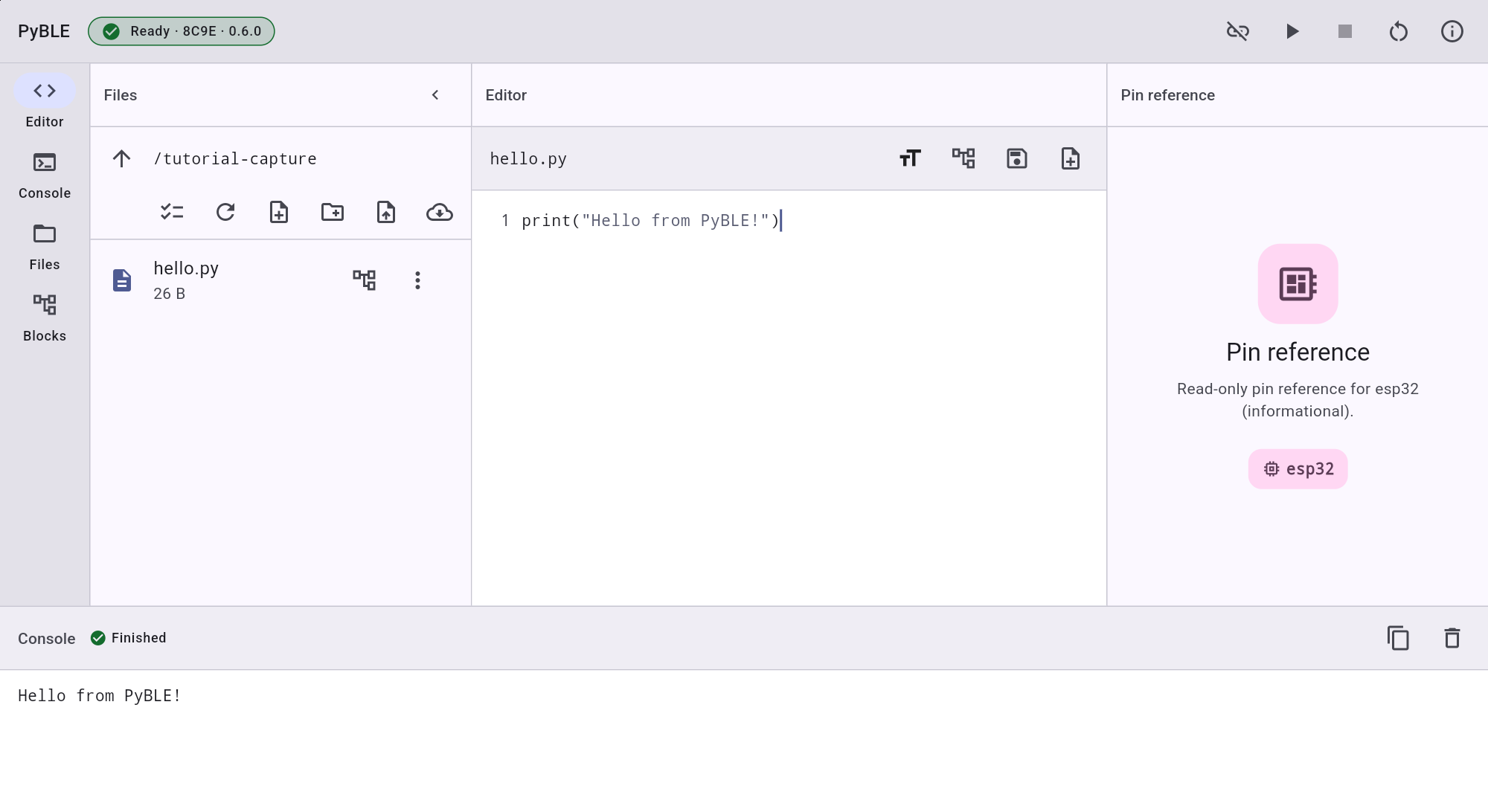
Actual Android tablet · Lenovo TB-J616Xhello.py · saved source and explicit Run result Expected: Console prints
Hello from PyBLE!once and the finite program ends.Edit and prove the cycle again
Change the message, Save the new snapshot, and Run it again. Confirm that Console shows the changed text, not the earlier copy. Firmware 0.6.1 gives each Run fresh globals, so recreate variables in your program. Imported modules and hardware state are not necessarily reset.
Expected: the new Console line matches the exact text currently saved in the editor.
Practice Stop and recovery
Choose Stop while work is active. Stop requests interruption; a soft reboot may close the BLE session. If that happens, wait for the agent, scan, reconnect, verify identity again, and reopen the file from Files.
Expected: bounded work stops, or the board returns after soft reboot and reconnect with the same verified identity.
Need recovery help?
Stop at the current step, record the exact profile, board identity, app and firmware versions, and the first useful error. Then use the PyBLE support and recovery guide.